Instructions for connecting a RISCO panel to the cloud RISCO panel
By Hommax SmartSD
RISCO panels can be configured to be permanently connected to a cloud service, allowing images to be sent to the ARC and the user's smartphone app.
The cloud service manages all communications between the system, service providers (CRA) and web users, allowing monitoring and control via the web.
The aim of this post is to provide you with the essential instructions for connecting the panel to the cloud. Let's get started!
Necessary configuration on the panel
The following points are described to be configured from the panel keyboard. However, they can also be done from the configuration software, if you already have a connection (for example, via a direct cable).
1º Enable Cloud Communication:
From the installer menu (keyboard), select:
1) Programming > 1) System > 2) Control > 3) Communication > Enable Cloud [S]
2º - Establish the IP network connection with the server using the IP and/or GPRS module:
From the installer menu, select:
1) Programming 4) Communication > 5) Cloud >
→ IP Address: IP server address (www.riscocloud.com or the CRA server address)
→ IP port: IP port of the server, configured as 33000 (DO NOT CHANGE)
→ Password: The password to access the server. This will be the password that will be requested later to register the panel in the cloud (default AAAAAA)
→ 4) Channel: Select the desired method for communication with the cloud (IP only, GSM only, IP/GSM or GSM/IP, depending on availability).
3º - Parameters of the selected communication module.
GPRS/2G/3G/4G module:
From the installer menu, enter the parameters related to the SIM's APN:
1) Programming 4) Communication 1) Communication Mode 2) GSM 2) GPRS >
→ APN Code.
→ APN User.
→ APN Password.
Next, modify the GSM coverage level monitoring if desired:
2) GSM 5) Parameters 3) GSM Coverage: High Level/ Low Level/ Disabled.
IP Module:
1) Programming 4) Communication 1) Communication Mode 3) IP 1) Configure IP>
→ IP Address
→ Subnet Mask
→ Gateway
→ Primary and Secondary DNS
→ Port
Cloud panel registration
1 - Administration website:
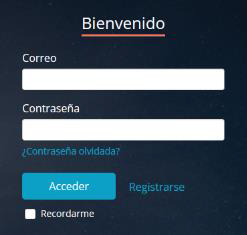
Access the cloud administration website using your Installer or Administrator credentials or the URL corresponding to your CRA.
2 – Create a New Site:
From the Sites window, click on ‘Add Site’ and enter the necessary information. Select ‘New Site’ if the Site has not yet been registered, or ‘Existing Site*’ if the Site has already been created (either by the user from the App/web or by another company and released).
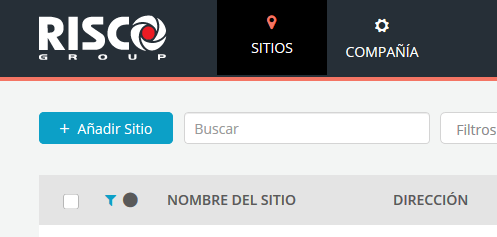
3 – Register the panel:
From the PANEL window, click on the Panel to add it.
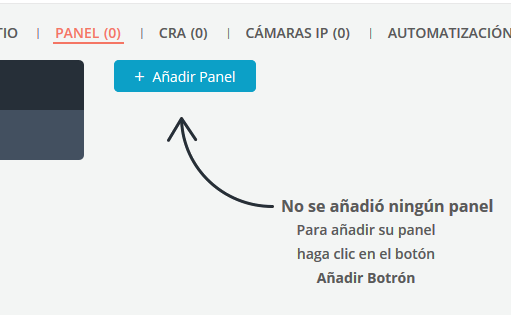
4 – Add the panel:
Click on ‘Add Panel’
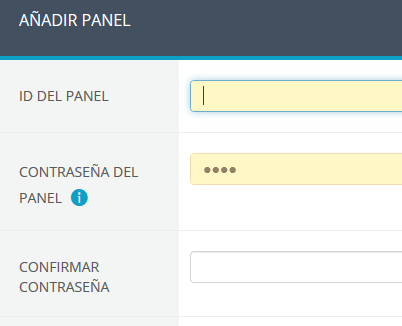
→ Enter the panel ID using only the first 11
digits
→ Enter the panel password. It must be the same as the one entered in the panel in point 2 (default AAAAAA)
→ In ‘Confirm Password’, repeat what you entered in the previous step.
→ Click on Save
If an error occurs, carefully read the information displayed to understand what the problem is.
If the registration was successful, check the ‘Panel Type’ and ‘Status’:
→ If the Panel Type indicates ‘Unknown’, it means that the panel entered has never connected to the cloud. Recheck all the previous points.
→ If the Panel Type indicates the ‘Correct Type’ (Agility, LightSYS, etc.), it means that the panel is or has been connected to the cloud. In this case, check the ‘Status’:
• Offline. It is not currently connected, but it has been at some point. Recheck all the points indicated in this article.
• Pending offline. The panel is currently not connected, but was connected less than 4 minutes ago. This most likely indicates that an incorrect password was entered when adding the panel (Point 4).
• Online. Congratulations, the registration was successful and the panel is connected to the cloud.
If you still have questions or need further information, please do not hesitate to contact us.